
Asterisk 22 on Ubuntu 24.04: complete install guide for 2026
Ubuntu 24.04 LTS is supported until 2029. Asterisk 22 ships with a properly modernised PJSIP stack and noticeably better WebRTC handling than its predecessors. Put the two together and you have a telephony foundation that you can actually build on without worrying about the floor giving way in eighteen months.
This guide covers a source build — not the package manager version, which tends to lag behind and strips out modules you will probably want. If you have done this before on an older Ubuntu release, most of it will feel familiar. If you are newer to this, follow the steps and you will be fine. I have tried to explain the parts that are not obvious without padding out the parts that are.
What you need before you start
A fresh Ubuntu 24.04 LTS server — physical hardware, a VM, or a cloud VPS all work. For development and light use, 2 vCPUs and 2 GB RAM is enough. Production systems handling real call volume will thank you for 4 GB.
You need root or sudo access, and if you are planning to use WebRTC endpoints or accept calls from outside your network, a domain name with a real TLS certificate will be necessary down the line. We will get to that.
Step 1: Update and install build dependencies
Start clean. A full system update before you touch anything else saves you from chasing dependency ghosts later.
sudo apt update && sudo apt upgrade -ysudo apt install -y build-essential wget curl git subversion \
libncurses5-dev libncursesw5-dev libssl-dev libedit-dev \
libxml2-dev uuid-dev libsqlite3-dev sqlite3 \
libjansson-dev libcurl4-openssl-dev libspeexdsp-dev pkg-configThese are the core build tools. Asterisk’s own prerequisite script handles the rest in a later step — no need to hunt down codec libraries manually.
Step 2: Create a dedicated Asterisk user
Running Asterisk as root is the kind of decision that feels fine until it isn’t. Create a system user that owns the process and nothing else.
sudo adduser --system --group --home /var/lib/asterisk asterisk
sudo usermod -aG audio,dialout asterisk
Step 3: Download and extract Asterisk 22
cd /usr/src
sudo wget https://downloads.asterisk.org/pub/telephony/asterisk/asterisk-22-current.tar.gz
sudo tar -xzf asterisk-22-current.tar.gz
cd asterisk-22.*/
Step 4: Run the prerequisite installer
This script detects your system and pulls in everything Asterisk needs to compile. Let it do its job — it is smarter than doing this by hand.
sudo contrib/scripts/install_prereq installIf you want MP3 support for music on hold, run this too:
sudo contrib/scripts/get_mp3_source.shStep 5: Configure the build
The –with-jansson-bundled flag is worth including. It ensures JSON support regardless of whatever libjansson version your system happens to have, and Asterisk’s ARI interface needs it.
sudo ./configure --with-jansson-bundledOnce that completes, open the module selector. The defaults are reasonable, but a few things are worth enabling explicitly.
sudo make menuselect- Core Sound Packages — English prompts in WAV format at minimum
- Codec Translators — enable Opus if you are planning WebRTC endpoints
- Channel Drivers — chan_pjsip should be selected; chan_sip can stay off unless you have a legacy reason to need it
Step 6: Compile and install
The -j flag parallelises the build across all available cores. On a decent VPS this takes around five minutes. On something modest, go make a coffee.
sudo make -j$(nproc)
sudo make install
sudo make samples
sudo make config
sudo ldconfig
The sample configs that land in /etc/asterisk/ are verbose by design — they are reference material, not production config. You will replace most of them over time.
Step 7: Set file ownership
sudo chown -R asterisk:asterisk /etc/asterisk
sudo chown -R asterisk:asterisk /var/{lib,log,spool}/asterisk
sudo chown -R asterisk:asterisk /usr/lib/asterisk
Then tell Asterisk to run as that user. Edit /etc/default/asterisk:
AST_USER="asterisk"
AST_GROUP="asterisk"
Step 8: Open firewall ports
- UDP 5060 — SIP signalling
- UDP 5061 — SIP over TLS (required for WebRTC)
- UDP 10000–20000 — RTP media range
sudo ufw allow 5060/udp
sudo ufw allow 5061/udp
sudo ufw allow 10000:20000/udp
If your server is exposed to the internet, lock SIP down to known IP ranges. An open SIP port on a public IP will attract scanners within the hour — it is not a matter of if, it is a matter of when.
Step 9: Start the service
sudo systemctl daemon-reload
sudo systemctl enable asterisk
sudo systemctl start asterisk
sudo systemctl status asterisk
Active: active (running) is what you want to see. Then connect to the CLI and confirm:
sudo asterisk -rvvvIf you get a prompt and ‘core show version’ returns Asterisk 22, you are in business.
Step 10: A minimal PJSIP endpoint to verify registration
Before you wire up anything real, confirm that a softphone can actually register. Add this to /etc/asterisk/pjsip.conf:
[transport-udp]
type=transport
protocol=udp
bind=0.0.0.0

[testuser]
type=endpoint
context=default
disallow=all
allow=ulaw
auth=testuser
aors=testuser

[testuser]
type=auth
auth_type=userpass
password=yourpassword
username=testuser

[testuser]
type=aor
max_contacts=1
Reload PJSIP from the CLI with ‘module reload res_pjsip.so’, point a softphone at your server, and watch it register. That is your green light.
Enabling WebRTC endpoints
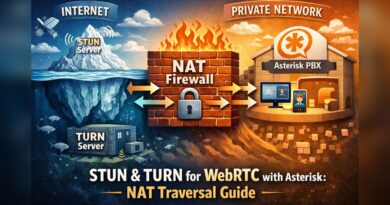
Add a WSS transport and use the webrtc=yes shorthand on your endpoint. That single flag sets up DTLS, ICE, AVPF, and rtcp_mux — all the things that make a browser happy to connect.
[transport-wss]
type=transport
protocol=wss
bind=0.0.0.0

[webrtc-endpoint]
type=endpoint
webrtc=yes
context=default
disallow=all
allow=opus
You will need a valid TLS certificate for this to work in a real browser — browsers will not grant microphone access over an insecure connection. Let’s Encrypt is the path of least resistance here.
Where to go from here
You now have a working Asterisk 22 installation. The natural next steps depend on what you are building, but the usual path goes something like: extensions and dialplan, SIP trunks to a provider, then whatever your specific use case demands on top of that.
If you want conference rooms, ConfBridge is worth getting to know. If you are headed toward WebRTC browser clients, the Browser Phone project on this site is a good starting point.
If managing your own Asterisk infrastructure is not something you want to take on long-term, Siperb is worth a look — it sits between your existing PBX and your users, handling WebRTC proxying and provisioning without requiring changes to your Asterisk configuration.
Drop a comment below if anything in this guide needs updating — I revisit these posts when the process shifts between versions.